Enrollment Workflow: Request by Staff
This information outlines the steps required for staff to enter an Enrollment Request for changes to a student’s enrollment. This initial step to the workflow includes the enrollment actions of adding, dropping, swapping, auditing, and setting a class to pass/fail.


Introduction
A workflow process is required to make certain enrollment changes for a student. Schools and Colleges staff can request specific changes to enrollment regarding:
- Add
- Drop
- Swap
- Audit
- Pass/Fail
Based on the career, the action, reason, and the date, the form will be routed for approval through the appropriate levels of the department and/or OUR staff. This guide introduces the workflow and how staff can enter an enrollment change request and view its status.
It is extremely important to select the correct action and reason. The combination of who submits the enrollment change and the Request Reason selected will determine the appropriate workflow approval steps. More details on the relationship between these elements can be viewed in the Actions, Reasons, & Workflow Approval section.
⚠︎ Screen options and menus will vary by user; please note that displays may differ for you based on access that has been granted. All screens shown are for training purposes only.
Enrollment Change Requests Navigation
ⓘ NOTE: It’s important to have all the information related to the request before entering. An incorrect selection of reason(s) may cause errors or delays with the request.
- Log into MyBU Student.
- In the Menu, navigate to Manage Workflow > Request Enrollment Changes.

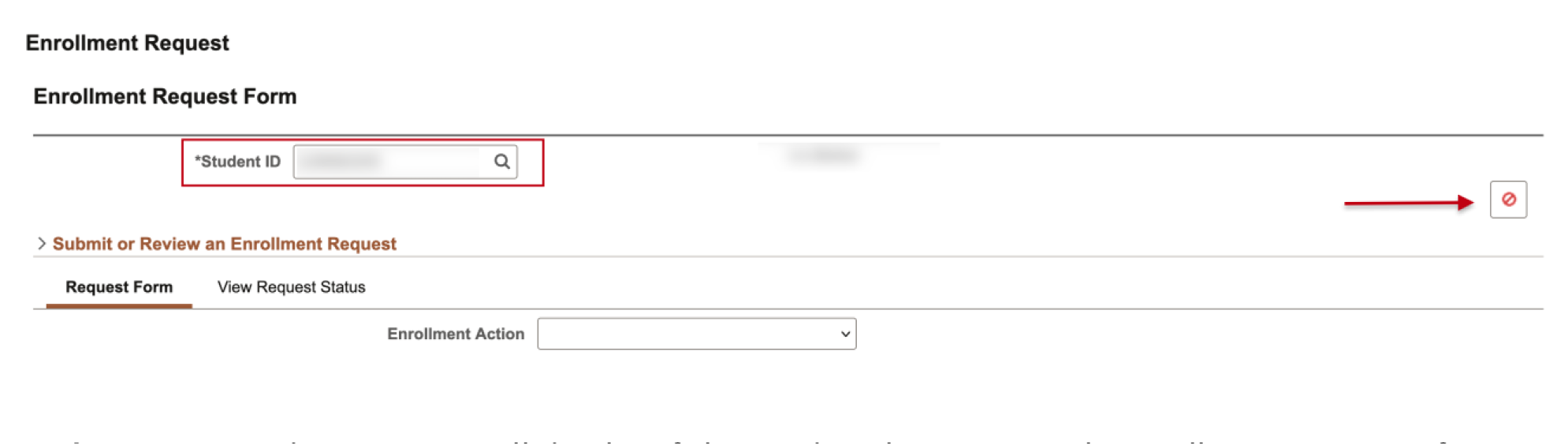
- The Enrollment Request Form page will open. Enter the student’s BUID or click the magnifying glass to search additional criteria.
- If entering an ID, the student information will populate. If a search is conducted, a lookup results window will open; click on the student row to select.
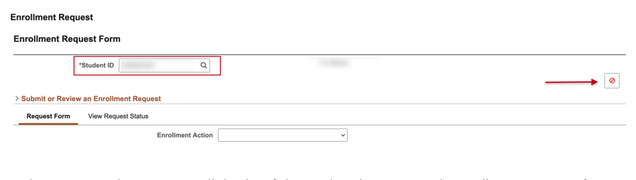
TIP! A Service Indicator icon will display if the student has an SI with enrollment impacts for any Term. Click on the icon to launch the Manage Service Indicator screen for more information.
To view an existing request, skip to the ‘View the Status of a Request’ section. Otherwise, proceed with the following steps.
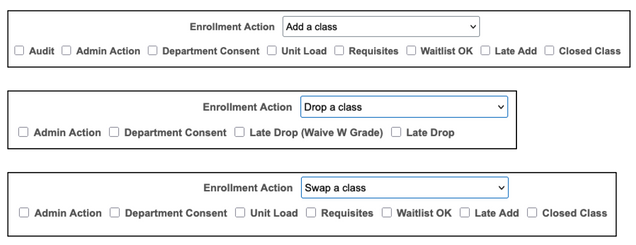
- On the Request Form tab, in the Enrollment Action field, click the dropdown menu to select the specific action being requested: Add, Audit, Drop, Pass/Fail, Swap.
- The Request Reason options available will be determined by the action that has been selected.
- The ‘Add a Class’, ‘Drop a Class’, and ‘Swap a Class’ actions allow for multiple reasons to be selected. Refer to the table in the next section to review all Actions & Reasons. The availability of actions and reasons may vary by security access.
- If an Action allows for multiple Reasons, click the check box next to the reason(s) that apply to this request.


Actions, Reasons, & Workflow Approval Information
It is extremely important to select the correct action and reason. The combination of who submits the enrollment change and the Request Reason selected will determine the appropriate workflow approval steps. The general workflow steps are:
- Enrollment request submitted.
- If the submitter is also a department approver, the MyBU Student system will programmatically approve the change.
- If the submitter is not a department approver, the request will be sent to the associated department approver(s).
- If the Request Reason only requires department consent, then the process is complete once they approve.
2a. If the Request Reason requires OUR review, then the enrollment change will be sent to OUR for approval.
- With OUR’s approval, they will manually update the enrollment change.
ⓘ NOTE: DEPT APPROVERS: If you are submitting or approving an enrollment request, please review the student’s record to ensure the appropriate action and reason has been identified. This will help to minimize conflicts and programmatic errors.
The following table outlines the associations between Enrollment Actions, Request Reasons, and Approval steps.
- (DPT): Request goes to department approvers and then MyBU Student automatically updates.
- (DPT > OUR): Request goes to department approvers and then OUR to approve and manually updates.
If multiple Request Reasons are selected, and one of the reasons is built to route to OUR, then the request will go to OUR regardless of if the other request reasons only require department approval.
| Enrollment Actions | Request Reasons & Approvals |
|---|---|
| Add a class |
|
| Audit a class | Existing Class Enrollment
|
| Drop a class |
|
| Pass/Fail | No associated Request Reasons
|
| Swap a class |
|
*For Medical, Dental, and Law Careers:
- Add, Drop, or Swap a Class: approval by department approvers will complete the workflow process; OUR will not be an additional level of approval.
ⓘ NOTE: an enrollment request cannot be submitted to add or swap a class for students outside of their career. To request this change, submit through the Student Academic Record Change form (Manage Workflow > Student Academic Record Change).
Additional information for Request Reasons:
- Admin Action: to be used during the open registration period when other options are not appropriate. For example, select if staff register students instead of students registering themselves, or they have a technical problem and need help getting enrolled.
- Department Consent: select when the class has ‘department consent required’ added as part of the add or drop consent process.
- Student will get a message that says department consent is required when trying to enroll.
- Closed Class: select when a student is registering for a class that has reached capacity. Additionally, it can be used for classes with a reserve capacity associated and the student does not meet the requirement – selecting this reason submits the enrollment change for them to be added regardless.
- Late Add: select when a student is registering for a class past the add deadline.
- Late Drop: select when a student is dropping a class past the drop deadline.
- Unit Load: Select when enrolling the student in a class that will put them over their unit load.
- Waitlist Ok: Select when to add a student to the class’s waitlist.
Enter Enrollment Request
All submitters should double check that the appropriate reason(s) has been selected. Once the Action and Reason(s) have been selected, review the active career(s) and Term(s) available.
DROP A CLASS
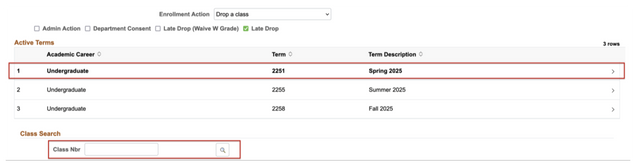
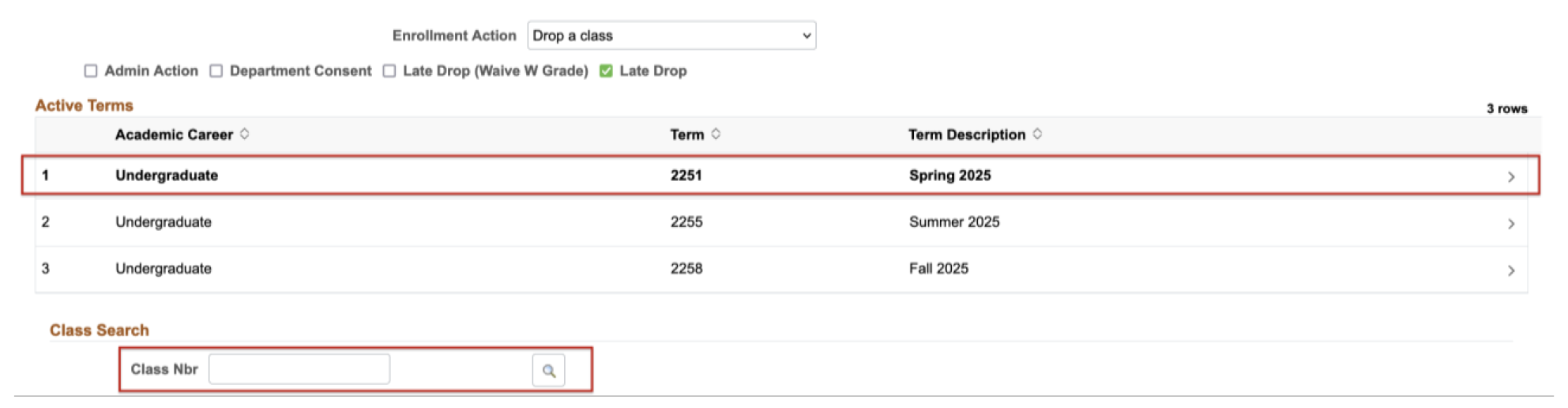
- Upon selecting the ‘Drop a Class’ action and the relevant reason(s), click on the appropriate row for the desired Term.
- Click the lookup in the Class Nbr field that then displays.
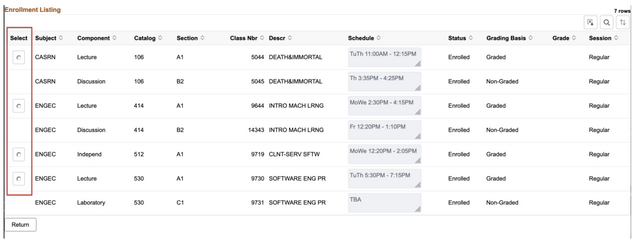
- The student’s enrolled class list will display. Select the class to be dropped using the left radio button.
- Upon selecting, the class details will populate the appropriate fields in the request form. Click Submit.

ADD, AUDIT, PASS/FAIL, SWAP A CLASS
- Upon selecting the ‘Add a Class’ or Swap a Class’ action and the relevant reason(s), click on the appropriate row for the desired Term.
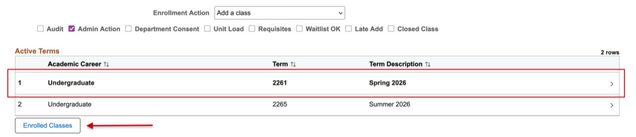
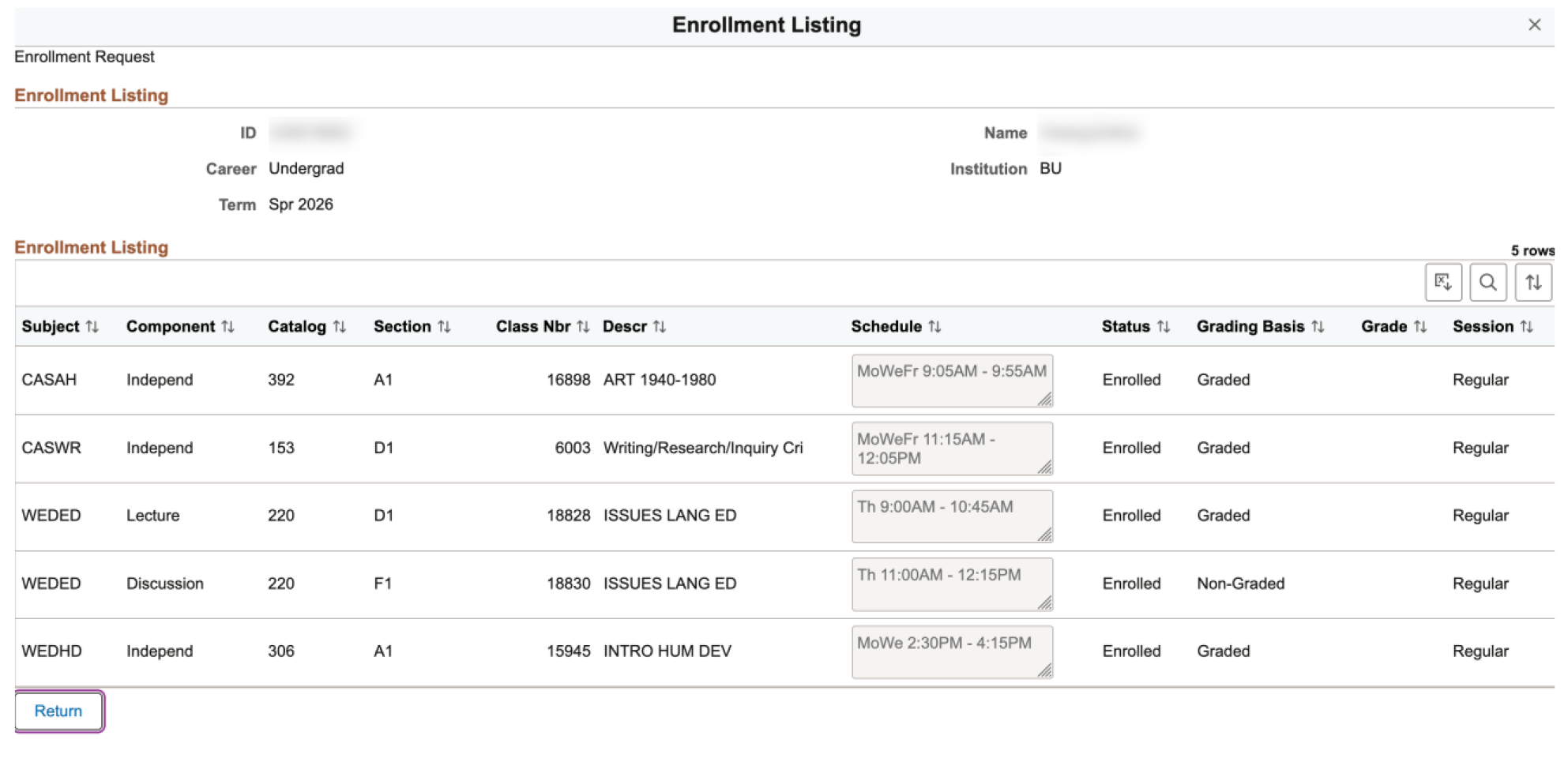
- Click the Enrolled Classes button that then displays. This launches a list of enrolled classes for the Term to review (this only applies to add or swap actions).
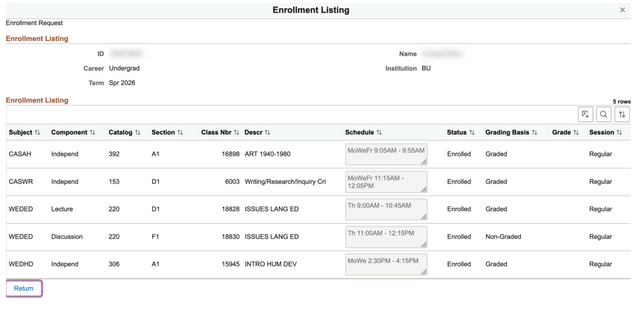
- Click the Return button, or exit from the upper right corner, to go back to request form.

CLASS SEARCH STEPS
The following Class Search steps are the same for add, audit, pass/fail, or swap actions. If dropping a class, the following fields will populate with the class selected from the student’s enrolled list.
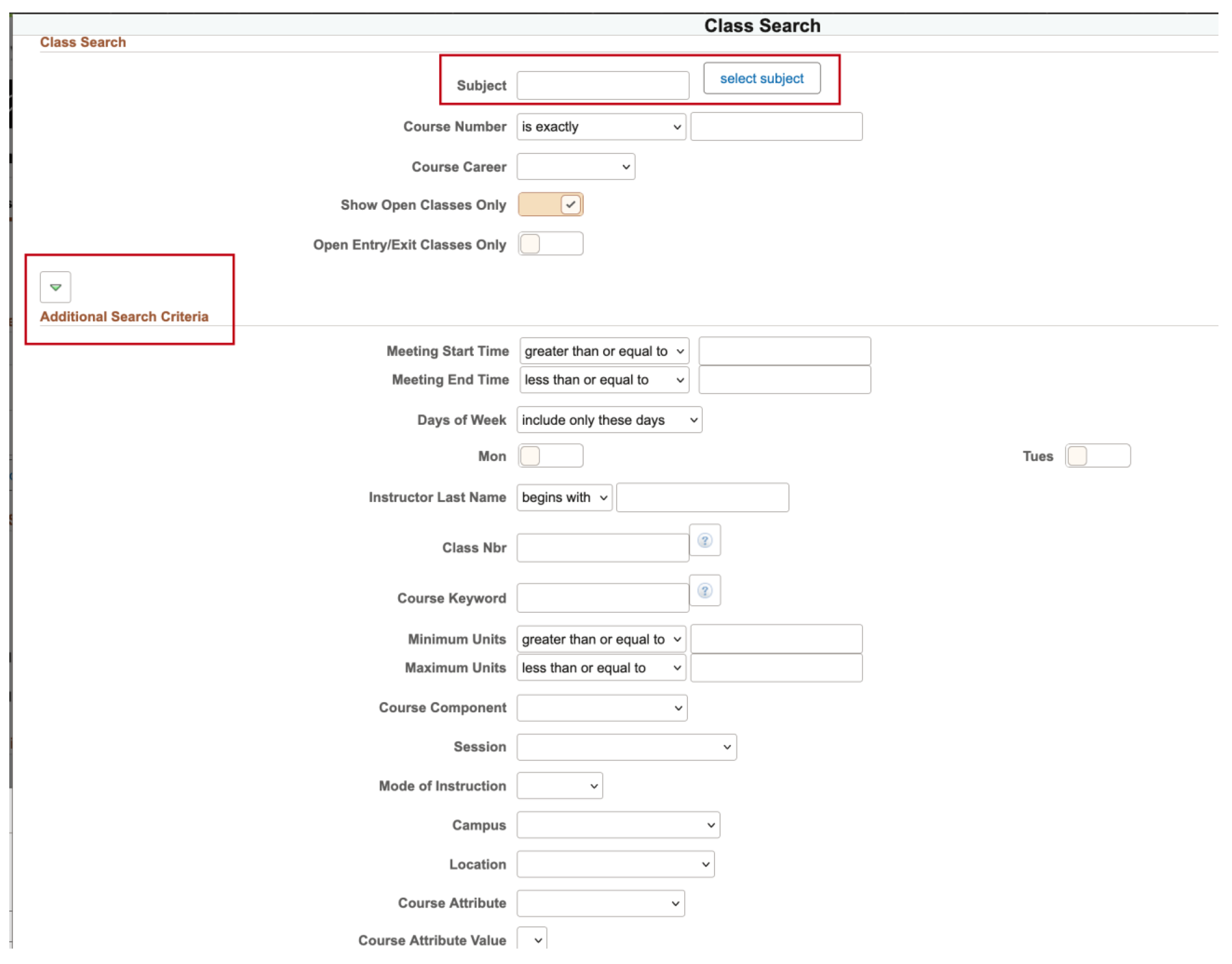
- Enter the Class Number exactly if known, otherwise click on the magnifying glass to enter search criteria.
- If the Class Number is entered directly, the class details will populate the next set of fields (Subject, Catalog Nbr, Component, Class Section, Session, and Course ID).

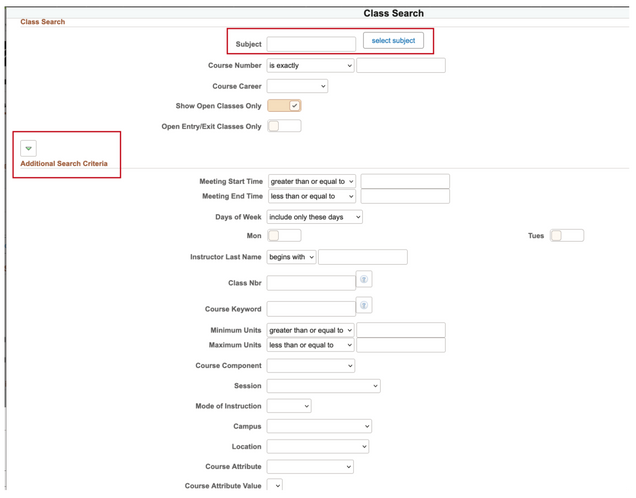
- Enter the Subject value if known or click the Select Subject button to lookup to available subjects.
- Enter other information to narrow down the search. Fields that display by default are Course Number, Career, Show Open Only and Open Entry/Exit only.
- For more criteria, click the arrow button above the Additional Search Criteria section. Additional fields will display.
- Click Search in the bottom right corner.
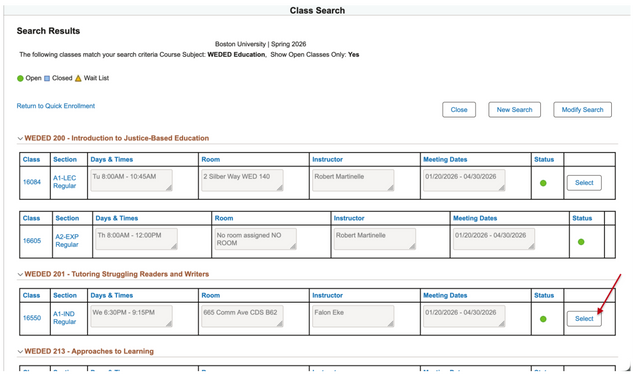
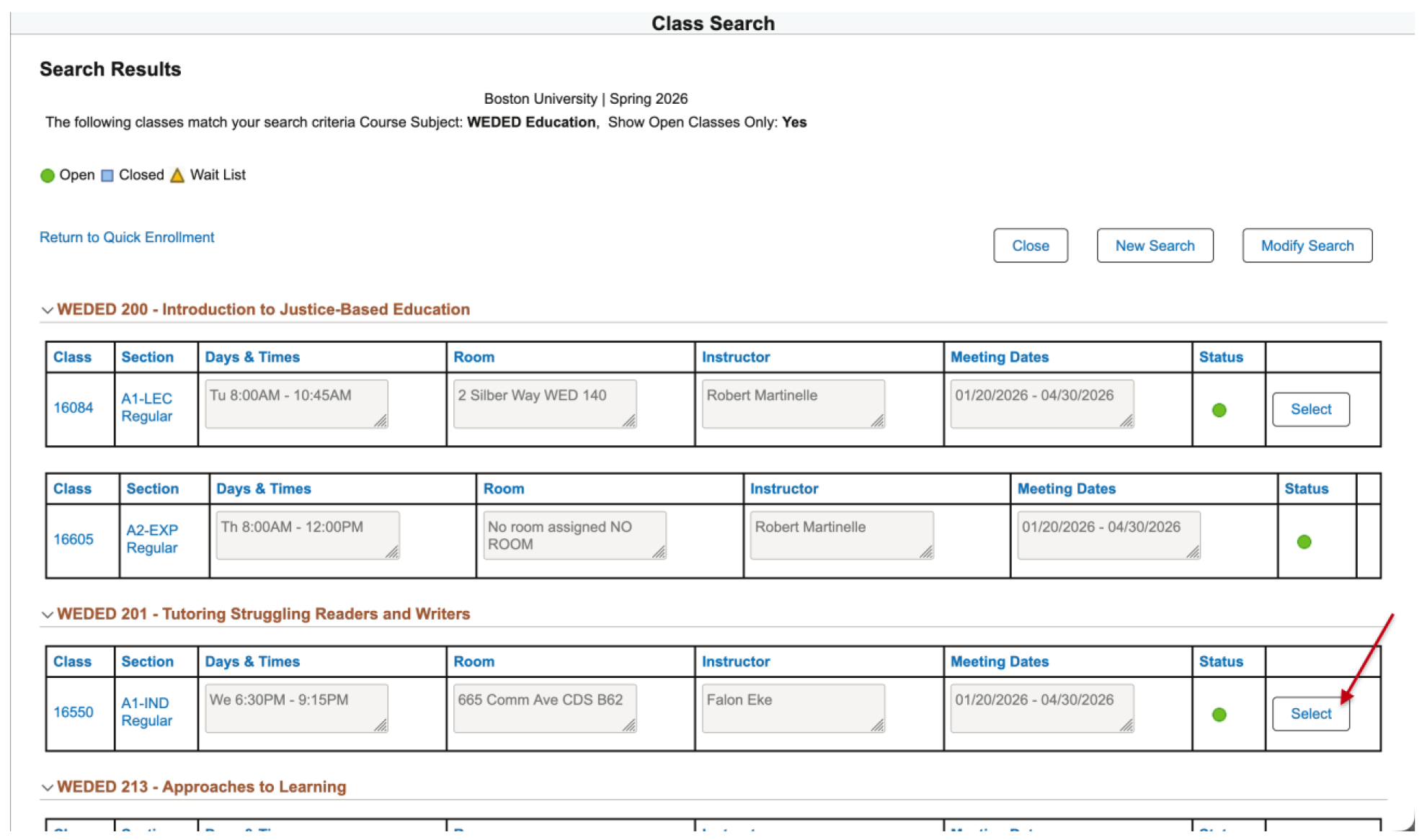
- Search Results will appear with relevant information; review and click the Select button on the correct course.
- Options are also available to run a New Search or Modify Search.
TIP! When attempting to enroll a student in a course and there is a time conflict with their current schedule, the class number of the course it conflicts with will display in the message.
- Once selected, the course details will populate on the request form.
- Enter the Component if applicable.
- Click the Add Attachment button to include documentation with the request (click the plus arrow to add multiple attachments).
- When complete, click Submit.

A confirmation message will display if successful. If the request doesn’t complete successfully and an error is returned, a report in Query Viewer is available to gather more information about the error so it can be resolved (appropriate access required).
- Navigate to Query Viewer
- Search for the Workflow Errors query: BU_SR_WORKFLOW_ERRORS
- Enter a term and the enrollment request number
- The error information will be returned


View Request Status
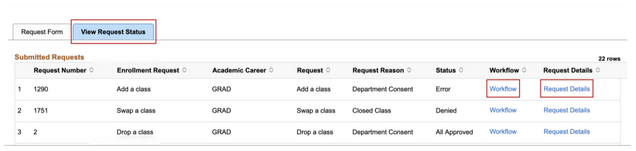
Viewing request details allows for the checking of the request status, approver information, and any relevant comments that have been added to the request. Once the student has been selected, click the View Request Status tab.
Enrollment requests that have been submitted for the student will display with associated request data: Request Number, Request (type), Career, Request Reason, and:
-
Status values, such as Error, All Approved, In Approval Process, or Denied can help provide insight into what’s occurring with the request.
- An Error status will display for any enrollment workflow requests that are unsuccessful at any point in the workflow.
- Workflow link opens a window to view approval chain activities for this request.
- Request Details link opens a window listing additional, important information pertaining to the request, including comments.
To confirm the associated approvers for a School/College, use either of the following queries: BU_ENRLMNT_WORKFLOW_APPROVERS or BU_CPP_WORKFLOW_APPROVERS.

WORKFLOW LINK
If the request has been ‘Pushed Back’ to the submitter, the comments listed here may provide additional information that can help for how to proceed.
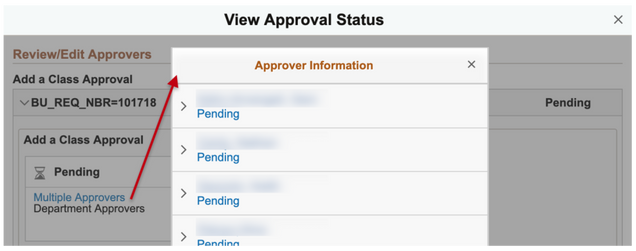
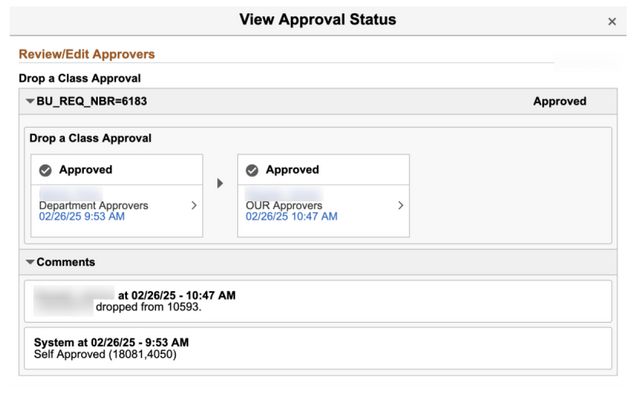
- Click the Workflow link to view approvers who will or have been involved and comments that have been added.
Example A: Pending request with ongoing activities:

- To review additional approver information, click on the Approver box. A window will appear with their information.
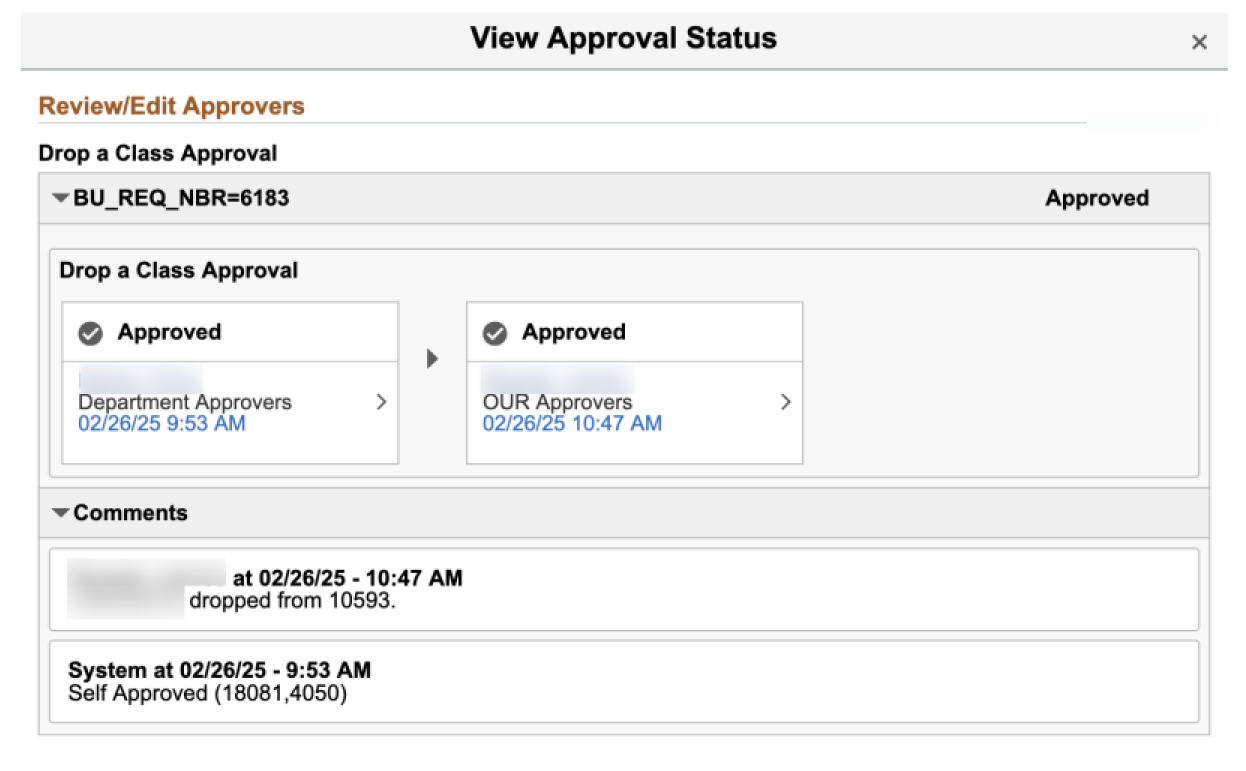
Example B: Completed, approved request:


REQUEST DETAILS LINK
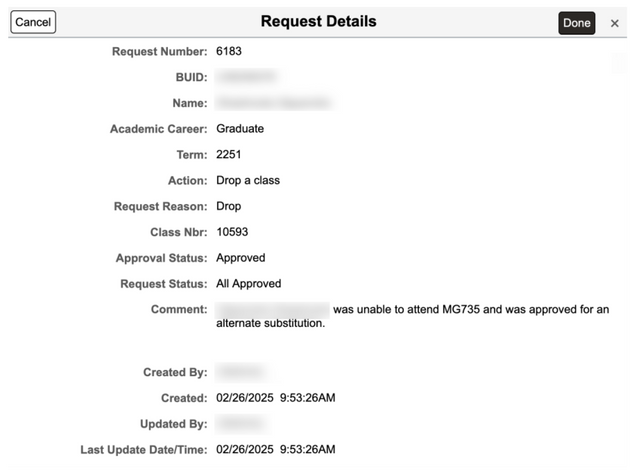
This is helpful page to return to for the approver or requestor to review, for example, the Term or Class Number that was part of that request. Additional details include: Request Number, BUID, Name, Career, Action, Request Reason, Statuses, Comments, Created By, Updated By, and activity dates.
- Click the Request Details link to view relevant information for the request that may not display in the initial Submitted Requests list.